
Deploy private docker registry in kubernetes
Step 1: Creating files for authentication
Make a folder and open terminal within a folder created
mkdir registry
cd registry
Create tls certificate and a key
openssl req -x509 -newkey rsa:4096 -days 3650 -nodes -sha256 -keyout certs/tls.key -out certs/tls.crt -subj "/CN=<docker-registry.mydomain.com>"Use htpasswd to add user authentication for registry access. If htpasswd is not installed then install using below command.
sudo apt-get install apache2-utilsCreate authentication file using htpasswd
htpasswd -Bbn <your_username> <your_password> > auth/htpasswdAt the end of this you will have folders as follows
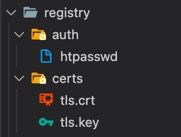
Step 2: Create kubernetes secrets
Kubernetes secrets is a way of storing secrets / keys in kubernetes master storage.
Create a secret to store tls certificates
The below command creates a Secret of type tls named certs-secret in the default namespace from the pair of public/private keys we just created.
kubectl create secret tls registry-certs-secret --cert=<path-to-registry-folder>/certs/tls.crt --key=<path-to-registry-folder>/certs/tls.keyThe Secret auth-secret that we create from the htpasswd file is of type generic which means the Secret was created from a local file.
kubectl create secret generic registry-auth-secret --from-file=<path-to-registry-folder>/auth/htpasswdStep 3: Create storage class and persistant volume claim for repository storage
We are using OpenEBS to configure and manage persistant volumes
Create storage class
docker-registry-sc.yaml
apiVersion: storage.k8s.io/v1
kind: StorageClass
metadata:
  name: docker-registery-sc
  annotations:
    openebs.io/cas-type: local
    cas.openebs.io/config: |
      - name: StorageType
        value: hostpath
      - name: BasePath
        value: <path-where-registry-should-be-stored>
   # eg value: /home/techiterian/Documents/volumes/docker_registry
provisioner: openebs.io/local
reclaimPolicy: Retain
volumeBindingMode: WaitForFirstConsumer
Create persistant volume claim
docker-registry-pvc.yaml
kind: PersistentVolumeClaim
apiVersion: v1
metadata:
  name: docker-registry-pvc # Specify name for pvc
spec:
  storageClassName: docker-registery-sc # Make sure storage class name is correctly spelled
  accessModes:
    - ReadWriteOnce
  resources:
    requests:
      storage: 2G # Specify appropriate storage
Execute below commands to create StorageClass and Persistant Volume Claim
kubectl apply -f <path-to-docker-registry-sc.yaml>
kubectl apply -f <path-to-docker-registry-pvc.yaml>